Demand item applications are those that track incoming requests for projects that need to be planned. These requests can come from any SBM application, and demand views can contain demand items from multiple applications.
Demand Manager includes the Business Requests application, which contains all elements you need to quickly begin populating and using demand views. For details, refer to About the Business Requests Process App.
The Change Management application included with Serena Service Manager is also configured to work with Demand Manager. For details, refer to Change Management Integration.
This section provides guidance on preparing your own SBM applications for use with Demand Manager. The information assumes that you have administrative privileges required to perform the tasks and are familiar with SBM components, application customization, and deployment. For assistance, refer to the SBM documentation.
- In
SBM Composer:
- Modify the application workflows for each process app to include design elements that incorporate the planning process. For details, refer to Recommended Demand Item Process Setup.
- Add the Demand Widget to custom state forms if you plan to capture time spent on planning activities. For details, refer to Add the Demand Widget to Custom State Forms.
- Add the Pause Status field to each application. This enables you to create reports and notifications that inform users about demand items as they are paused and unpaused. For details, refer to Add the Pause Status Field.
- Configure application workflows for "split" capabilities, which enables planners to create new demand items from smaller items. For details, refer to Configure Demand Item "Split" Capabilities
- Enable Time Capture options if you intend to record the amount of time spent on planning activities. For setup details, refer to Enable Time Capture Options.
- In SBM Application Administrator, create notification rules and notifications that inform users about demand items as they are paused and unpaused.
- In SBM User Workspace, create Listing reports that return active items in the Planning state or use other criteria that returns results pertinent to your planning process. For details, refer to Preparing Listing Reports for Demand Views.
Recommended Demand Item Process Setup
While SBM's flexibility provides multiple methods of preparing demand item applications and data for use with Demand Center, the following process is recommended. These changes are made in SBM Composer.
- Planning Item Type
For each application used to populate demand views in Demand Center, add a planning-specific value to the system Item Type field. (This field may have a different display name, but this is the field that determines the application's item types, such as Incidents or Hardware Requests.) For example, you may want to add a "Planning Item" type for items that need to go through the planning process and need to be available in Demand Center.
- Planning State with Routing
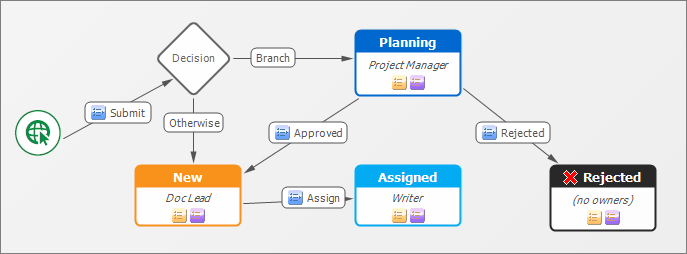
Create a state to which planning items can be sent, and then use conditional routing to move planning items to that state. This state can reside anywhere in your workflow, but typically, Planning Items would be routed to this state when they are submitted, as shown in the following example.
- Post-planning Process
Once demand items have been added to a plan, they follow their regular application process. Be sure to accommodate these post-planning phases of your process. In the example above, a project manager sends approved demand items to a lead, who can then assign them. Items that are not approved are sent to an inactive rejected state.
Add the Demand Widget to Custom State Forms
The Demand Widget is used by resources to associate work items with demand items assigned to plans that are in flight. Once this association is made, information about the plan and demand item is available in the work item.
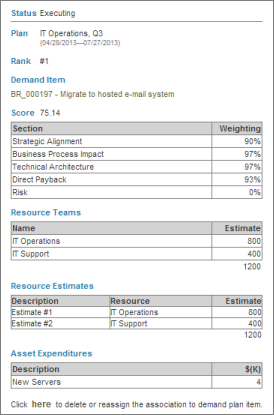
The Demand Widget can be added to any custom state form.
- In SBM Composer, determine which custom state forms should contain the Demand Widget.
- For each form, add the Demand Widget.
Tip: For best results, add the widget in a container that expands all columns or on a separate tab.
- On the JavaScripts tab for the form, select the Include jQuery plug-in check box.
- Deploy the process app.
- Repeat for each process app as needed.
Add the Pause Status Field
Demand items are "paused" automatically by Serena Demand Manager once they are moved to analysis or added to a plan. This prevents users and automated processes, such as Web services, from transitioning or closing items until they are in an approved plan.
This feature does not require you to modify your demand item applications, but certain changes will enhance the experience for planners and users who are assigned work items in these applications.
For details on demand item pausing, refer to About Demand Item Pausing.
- In SBM Composer, add the Pause Status system field to all demand item applications. This read-only field contains values that indicate if an item is paused by Demand Manager or unpaused. Deploy each process app to which you add the Pause Status field.
- In SBM User Workspace, create or modify reports in your demand item applications and include the Pause Status field as columns to display in the report or as a search filter.
- In SBM Application Administrator, create notification rules that use the "Any Paused/Unpaused Issues" object. This enables users to receive notifications as items are paused or unpaused by planning activities.
Configure Demand Item "Split" Capabilities
Planners can "split" large demand items into multiple items. This enables them to more accurately assess the cost of each item and to break tasks into manageable pieces of work to allocate to teams.
Items can be split when they are assigned to a plan.
To enable split capabilities, the following steps must be completed for each demand item application.
- In
SBM Composer,
add a Copy transition to the application workflow in your demand item
application, and then set the following properties:
- The internal name must be "application name.SPLIT_COPY."
- The Item Link Type setting on the Post Options tab must be set to a two-way link type.
- Ideally, the "From" state will be the one used to store items while they are being planned. (In the setup described in Recommended Demand Item Process Setup, this is the Planning state.) You can also set this to "Any."
- You can have multiple "split" transitions in a single workflow, but only one "split" transition per planning state. Additional transition names must be prefaced with "application name.SPLIT_COPY", such as "application name.SPLIT_COPY_ONE," "application name.SPLIT_COPY_TWO," etc.
- Deploy your process app.
- In SBM Application Administrator, edit the root-level project for the process app.
- Select the States/Transitions tab, and then edit the Copy transition you created in step 1.
- In the Post Item Project section, select Override, and then Select Project. Select the root-level project for the application.
- Save your changes.
- If demand items that will be split are stored in child projects,
you must apply the settings described in steps 4-6 in those child projects as
well as in the root project for the process app.
Note: Split items are always added to the same project as the original item from which they were split.