Demand Center is a robust, browser-based portal that enables you to view incoming demand items, assign them to plans, and view resource team allocations and workload.
Demand Center is used with the Demand Plan process app, which manages the life cycle for all plans.
- Demand Views
Organize incoming demand items and assign them to plans. For details, refer to About Demand Views.
- Plans
Prioritize work, allocate resources, set estimates and compare them to actual costs. For details, refer to About Plans.
- Resources
Monitor team allocations, capacity, and availability. For details, refer to About Resources.
Use the following URL to open Demand Center:
http://serverName/tmtrack/tmtrack.dll?shell=sdc
About Demand Views
Demand Center is populated with demand items that represent work that needs to be analyzed and assigned to plans. These demand items are organized into views and can come from any SBM application in your system based on Listing reports that meet the criteria specified in Preparing Listing Reports for Demand Views.
Demand views are organized into various categories, as shown in the following hierarchy.
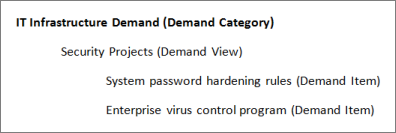
Demand categories are created by an administrator. Planners can then create their own views for each category.
- Analyze them by adding scoring information and general estimates
- Move them to approved plans
- Move them to a backlog
- Reject them
Demand items can exist in multiple views, but they are removed from all demand views once they are moved to analysis, into a plan or backlog, rejected, or they no longer meet the report criteria. For example, if a report returns all active items in a Planning state, items moved out of that state are no longer listed in the demand view.
Demand items are "paused" when they are moved into analysis, a plan, or a backlog, or when they are assigned to a plan that is put on hold. This prevents users from transitioning them or closing them until they have been approved. For details, refer to About Demand Item Pausing.
Demand Center provides multiple ways to see and interact with demand views:
- Overview
Shows one of three views:
- Demand Summary
Shows a graphical view of the status of all demand items. Users can drill-down to items in this category view.
- Category Breakdown
Quickly see the number of demand items that are in analysis or for which analysis is complete, by category.
- My Items
Lists the demand items that the logged-in user needs to analyze.
- Demand Summary
- Category Overview
Shows the demand summary, analysis breakdown, and "my items" for the selected category.
- List View
Filter the list view by status: New, Analyzing, Planning, Executing, Backlog, or Rejected.
About Plans
Plans are created in the Demand Plan process app that is included with Serena Demand Manager. This process app help bring control to planning by requiring approval for "normal" plans before they are available in Demand Center.
Once in Demand Center, plans serve as "buckets" for storing demand items so they can be prioritized, allocated to teams, and scheduled. Once demand items are part of an in-flight plan, they are "unpaused" and can move through their original application process.
- Assign demand items to the plan.
- Allocate resource teams to the plan.
- Share the plan with other planners, who can view and collaborate on demand items in the plan.
- Rank them by dragging and dropping them.
- Allocate them to one or more resource teams.
- Monitor capacity using the watermark, which clearly indicates the point at which items in a plan exceed the capacity of the resource teams allocated to the plan.
- Compare estimates to actual costs.
- Adjust scoring and estimates.
- Break each demand item into smaller tasks.
- Split large demand items into multiple items.
- Move items to another plan or a backlog.
- Return items to analysis. This moves them out of the plan and back to demand views for which they meet the report criteria.
Plan reviewers, managers, and stakeholders can also use Demand Center to send plans through the Demand Plan life cycle of reviews, final approval, and completion.
- Master View
Shows an aggregate list of demand items, including rank and plan name, in selected plans for a specific duration, enabling you to see the top initiatives across all plans. You can filter the list by items in planning, in execution, or completed.
- Pending Plans
Shows a list of pending plans to current plan owners, submitters, concept approvers, analysts, reviewers, and stakeholders. Pending plans are those that have not yet been approved and added to a portfolio.Note: The "My Pending Plans" report that is provided with the Demand Plan application is used to populate the Pending Plans tab. Modifications made to this report impact all Demand Center users, so use care when modifying the report. For details, refer to Review the "My Pending Plans" Report.
- Portfolios
Shows a time line of all plans in a portfolio for a specific time frame. You can choose to show capacity information and drill-down into each plan as needed. You can also filter the time lines shown to those in planning, in flight, or for which planning is complete.
- Plan
Shows the list of items in a plan or backlog, along with planning status of each item, resource team allocation, cost estimates, and more. Items are ranked, and you can change rank by dragging and dropping items. Plan owners can act on individual items by moving them to a new plan or a backlog, returning them to analysis, or proposing a new plan based on an item.
About Resources
Resources are teams of people who can be allocated to plans and demand items in those plans. Resource teams are defined by an administrator in SBM Application Administrator and can include SBM users and others who need to be considered in plans. For example, a resource team may include contractors or executives who are not assigned work items in SBM but who contribute to plans.
- Calendar
Calendars defined by an administrator determine standard working hours. Typically, each organization has multiple calendars for different sets of users, such as part-time employees or those in different countries. Ideally, each resource is associated with a working calendar, which is used to determine overall capacity. Capacity is set at zero (0) for those resources who are not assigned a calendar.
- Shared Percentage
A resource may be assigned to multiple teams for a shared percentage of time. For example, Chad Support Technician may be assigned to the IT Applications team for 50% and the IT Support team for 50%. Assuming his assigned calendar indicates that he works 40 hours a week, he can be allocated to each team for 20 hours a week.
- Start and End Dates
As resources are assigned to different teams and projects, their start and end dates may vary. For example, Chad Support Technician may work for the IT Support team all year, but be allocated to the IT Applications team for a three-month period.
Each resource team is also assigned a set of skills, job functions, and a team lead.
In Demand Center, use the Resources tab to monitor details about resource teams who are allocated to plans. For details, refer to The Resources Tab.