Allocating Resource Teams to Items
Once demand items are in an approved plan, you can allocate resource
teams to each item. This task can be performed by plan owners and users who
share the plan.
Note: Resource teams must first be added to the plan. For details,
refer to
Editing a Plan.
To allocate resource teams to plan items:
- From the Plans tab, select a plan.
- Select the Resource column for a specific planning item. The Estimates dialog box opens to the Resources tab.
-
Add a row for each task that needs to be completed for each
item:
- Description
Type a brief description of the task.
- Estimates
Provide an estimate in hours for the task. Once you save your changes, this estimate is used to calculate the team's remaining capacity.
- Resource
Allocate a resource team to the task.
Tip: You can search for resource teams by name or skill.
- Description
-
Click
OK to save your changes.
The
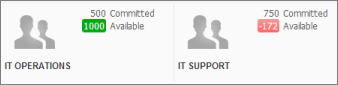
Teams pane at the bottom of the plan page shows the number
of committed and available hours for all teams allocated to the plan.
You can also monitor a team's work for all plans on the Resources tab. For details, refer to Working With Resources.