Use the Resources tab to monitor team allocations over a specific time frame. You can view resource information for plans you authored or that have been shared with you.
- Capacity
The amount of time a team can be allocated to work. For example, a team with five people can spend 30 hours each devoted to IT projects, so the team's capacity is 150 hours per week.
- Committed
The amount of time a team is allocated to work. For example, a team is allocated to two items: one estimated at 20 hours and one at 30 hours. The team's planned work is 50 hours.
- Availability
The amount of time a team is available for remaining work. For example, if the items totaling 50 hours for the team above are assigned to a plan with a duration of a week, the team has 100 hours of availability for that week.
For more information, refer to About Resources and The Resources Tab.
Monitoring Availability for All Teams
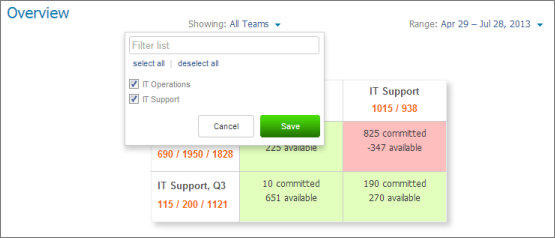
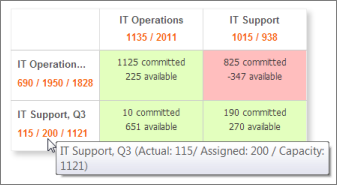
Use the Overview page of the Resources tab to quickly see the number of allocated hours and capacity for multiple teams. The Overview table is organized by plans and teams.
To customize the Overview page, select the teams you want to monitor from the Showing list, and the time frame from the Range list.
Hover over the column and row headers to see information about each of the numbers shown.
Monitoring Team Allocations Per Plan
There are various ways to monitor resource allocations per plan.
Team Allocations
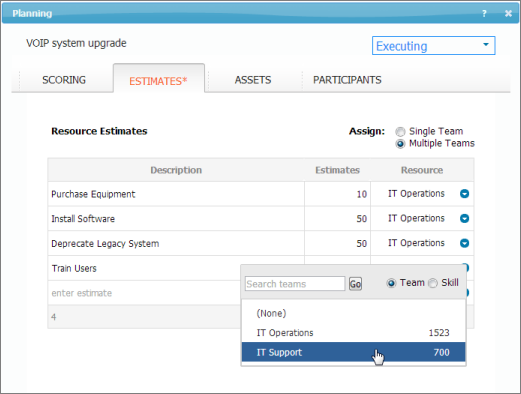
As you allocate items in a plan to teams, you can see availability for each team assigned to the plan.
Watermark and Team Indicators
As you allocate teams to individual items in a plan, a blue watermark appears under the last item on the list that can be completed with the total resources allocated to the plan.
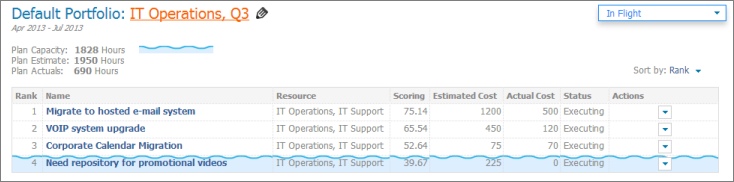
The capacity indicators at the bottom of the page show the number of committed and available hours for each team allocated to the plan.
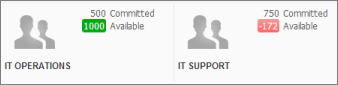
To see these settings from the Plans tab, select a plan that has teams allocated to it, and items in the plan allocated to each team.
Distribution Summary
This page on the Resources tab shows the selected team's work distribution for all plans.
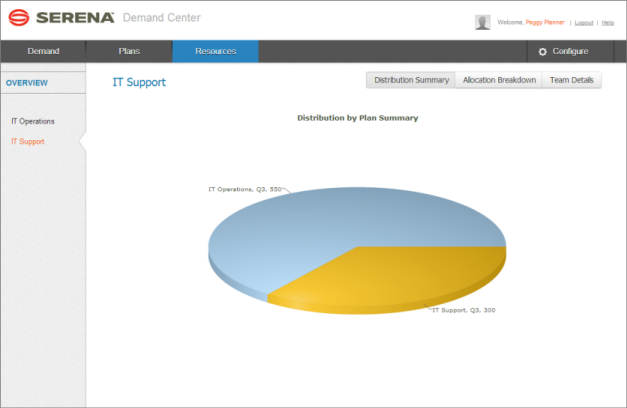
Click a section of the pie chart to see the list of items a plan.
To see this view, select the team in the navigation pane on the Resources tab, and then click Distribution Summary.
Allocation Breakdown
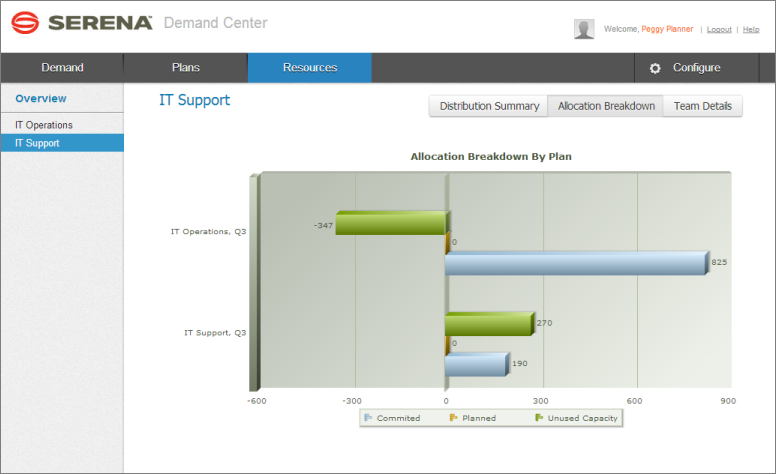
This page on the Resources tab shows a team's breakdown of allocations that are committed, planned, and unused capacity.
To see this view, select the team in the navigation pane on the Resources tab, and then click Allocation Breakdown.
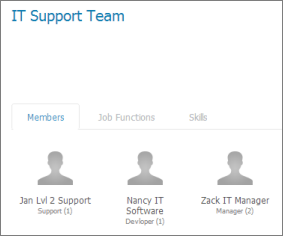
Viewing Team Details
Each resource team is assigned a set of members, skills, job functions, and a team lead. These assignments are made by an administrator in SBM Application Administrator. You can view these settings on the Team Details view of the Resources tab once teams are allocated to a plan.