Demand Center is divided into three tabs: Demand, Plans, and Resources.
The Demand Tab
Use the Demand tab to organize incoming demand items and assign them to plans.
The following figure shows an example of a demand view for a plan owner.
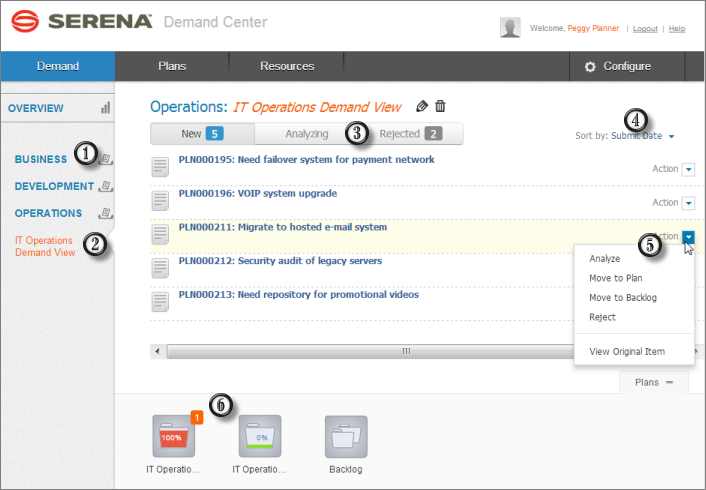
- Demand Categories
Demand categories enable you to organize demand views. Categories, which are created by an administrator, are visible to all users.
Select a category to list its demand views.
- Demand Views
Demand views list items based on specific Listing reports. Reports spanning multiple applications can be added to a view.
- Filters
Filter the list of demand items to show items that need to be analyzed (new), those in analysis, or those that have been rejected.
- Sorting
Items are initially listed by submit date. You can also sort the list of demand items by submitter or by each item's application type.
- Action
The Action list enables users who share the demand view to act on individual demand items.
- Plan Bins
All plans and backlogs available to you appear as folders in the bottom pane. Collapse the pane to close it.
You can drag demand items into these plans.
The following figure shows an example of the Demand tab overview pages, which shows a graphical view of items in analysis or for which analysis is complete.
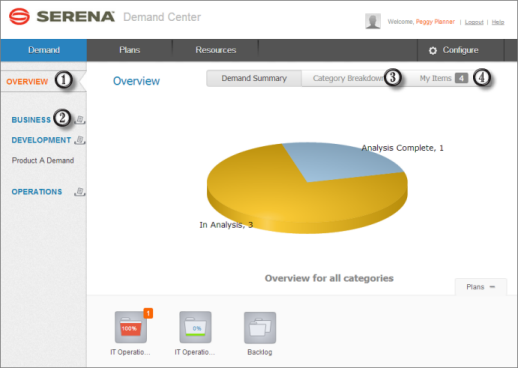
- Click Overview to see analysis status for all demand views.
- Click a category name to see analysis status for all views in the category.
- Click Category Breakdown to see a bar chart. You can select each bar to view details.
- Click My Items to see the demand items you need to analyze.
The Plans Tab
Plan owners can use the Plans tab to rank items assigned to a plan, allocate resource teams to the plan and items in the plan, and adjust scoring and estimates.
Plan owners, reviewers, and other stakeholders also use the Plans tab to move plans through the Demand Plan process.
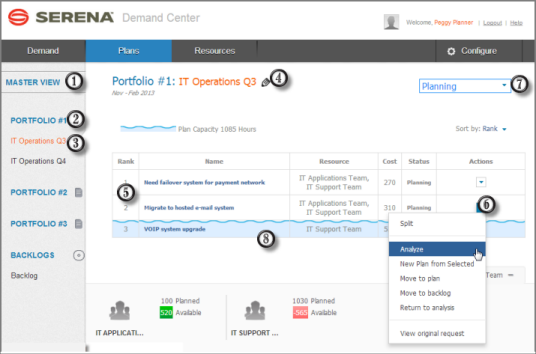
- Master View
Shows a list of enabling you to see the top initiative across all plans. This view is visible to plan owners and others who share the plan.
- Portfolio View
Click to see a time line of selected plans.
- Plan View
Click a plan to view its assigned items.
-
Edit
Click the pencil icon to edit a plan. You can then allocate resource teams to the plan and share the plan with others. - Ranking
Items are listed by rank. Drag and drop items to change their ranking.
- Plan Item Actions
Select Analyze to adjust scoring and estimates and to allocate an item to a team. Also, mark planning as complete from the Analysis page.
Depending on the status of the item, you can also "split" it into smaller items, move it to another plan or a backlog, return it to analysis, and more.
- Life Cycle Actions
Use this menu to send the plan through the Demand Plan life cycle. For example, you can send the plan to review, update it to change the plan owner, and more. Options depend on the plan's current state in the life cycle.
- Plan Capacity
A blue watermark appears under the last item on the list that can be completed with the total resources allocated to the plan. The capacity indicators at the bottom of the page show capacity for individual teams.
The Resources Tab
Use the Resources tab to monitor resource team allocations for a specific time frame.
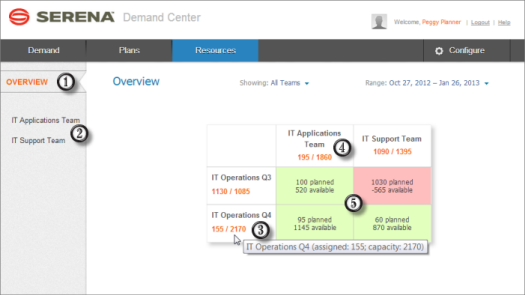
- Overview
Click to see resource allocations for the selected teams and time frame for plans you own or share.
- Resource Teams
Select a team to see a work distribution across all plans, allocation breakdown by plan, and team details.
- Plan Allocation Details
Each plan name cell show the number of allocated hours and the remaining capacity for all teams allocated to the plan. Hover over the plan name to see details.
- Team Allocation Details
Each team name cell shows the number of planned and available hours for all plans to which the team is allocated. Hover over the plan name to see details.
- Team Allocations Per Plan
See the number of planned and available hours for each team's plan allocation. Green shading indicates a team has available capacity; red shading indicates that a team is over-allocated.