While application processes consists of steps configured with the process editor, like component processes, they are primarily intended to direct underlying component processes and orchestrate multi-component deployments. The Install Component step, which we will use here, enables you to select a component process from among those defined for each component. Remember that a component can have more than one process defined for it.
You might be wondering why you need to create an application-level process when the process you created for the component should be able to perform the deployment by itself. While individual component processes can be run outside an application process, an environment must still be mapped to it and an agent associated with it, which are done at the application level. For a single-component deployment like helloWorld, an application-level process might not be required. You might also want to skip an application-level process when you are testing or patching a component. But for non-trivial deployments, and especially for deployments that have more than one component, you will want to create one or more application-level processes.
To create an application-level process, you define the individual steps as you did earlier when you created the helloWorld component process.
- Navigate to the application process you just created: Applications > [select helloWorld_application] > Processes [tab] > [select helloWorld App Process]. The available process steps are listed in the Component / Process list box.
-
Drag and drop the
Install Component step onto the design area. The
Edit Properties dialog appears.
Figure 1. Edit Properties dialog
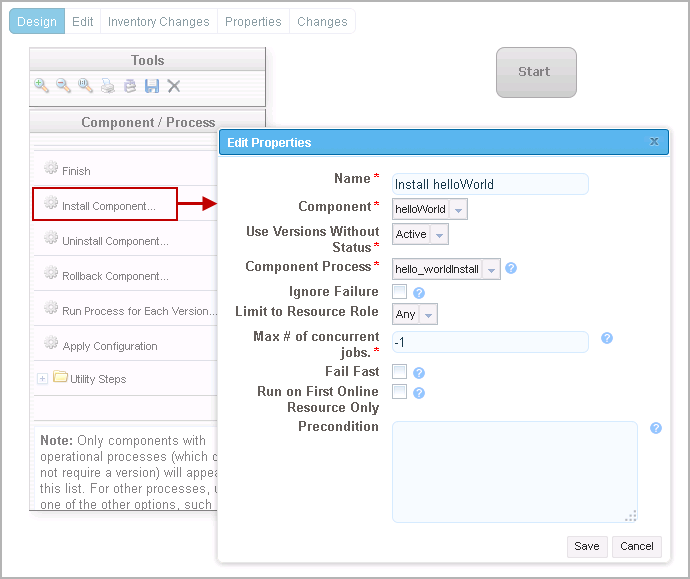
Select the helloWorld component from the Component drop-down menu.
If we wanted this application to install multiple components, we could add a separate Install Component step for each one.
-
In the
Component Process drop-down menu, select the
component process you created earlier,
hello_worldInstall. All processes defined for the
selected component are listed. If the component had another process that
deployed it to a different location, you could add another Install Component
step that used that process, simultaneously installing the component into two
different locations.
Accept the default values for the other fields. Click Save.
See Managing Applications for information about the other fields.
-
Connect the step to the
Start and
Finish steps.
Figure 2. Finished Application Process
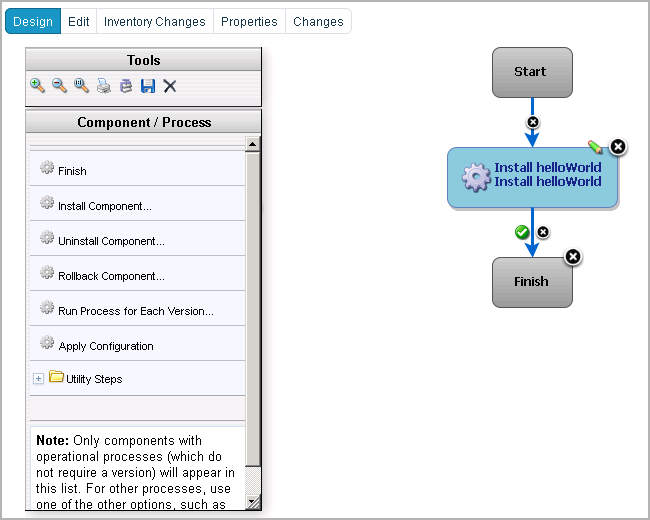
- Save the process by clicking the Save icon on the Tools menu.