This section provides guidance for solving common issues with Serena Demand Manager in an on-premise system.
Plan Creation Errors
When a plan proposal is approved during the concept phase, the CreateDemandPlan orchestration creates the plan in Serena Demand Center. The plan item automatically moves to the "Waiting/Error" state, where it remains until the orchestration completes successfully. A hidden Waiting for Orchestration field is set to Yes or No, depending on the orchestration's successful completion.
During this time, the information message "Processing…" appears to users.
If the orchestration completes successfully, the "Plan Created" transition executes.
If the orchestration fails to complete successfully, the plan item remains in the "Waiting/Error" state. Users receive an error stating that they can attempt to create the plan again.
If plan creation continues to fail, use the error messages that appear to help determine the problem:
- Error:
The orchestration received an unknown error. Wait for a few
minutes and refresh the form. If you receive the same message, contact your
administrator.
After successive polling, it is assumed that the orchestration failed to run at all because the Waiting for Orchestration field is still set to Yes.
If this occurs:- Open SBM Application Repository.
- Select the Environments tab.
- Select your environment, and then select the Endpoints tab.
- Verify that the DemandPlanService endpoint is using the correct
authentication method. In most cases, this will be
Security Token.
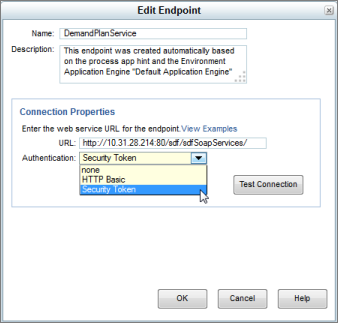
-
Error:
The demand plan could not be created in
Demand Center.
Try again to create the plan by using "Create Plan." If you receive the same
failure message, contact your Administrator.
Try these two solutions:
- After polling, it was determined that the orchestration completed, but encountered a failure because the Waiting for Orchestration field was set to No. Execute the "Create Plan" again, and if the failure continues to happen, review the user id and password used for the orchestration's authentication in SBM Composer.
- Verify that endpoints are set correctly:
- Open SBM Application Repository.
- Select the Environments tab.
- Select your environment, and then select the Endpoints tab.
- Verify that endpoints are set correctly for these services:
- DemandPlanService:
http://serverName:aePort/gsoap/sdf/sdfSoapServices/
- sbmappservices72:
http://serverName:aePort/gsoap/gsoap_ssl.dll?sbmappservices72
- sbmadminservices72:
http://serverName:aePort/gsoap/gsoap_ssl.dll?sbmadminservices72
- DemandPlanService:
- If you need to modify an endpoint, select the Process Apps tab, and then redeploy the Demand Plan and Demand Manager Orchestrations process apps.