Installation Issues
Specifying Configurator SSO Support in ALM Installer (DEF221902)
It is advisable to only select the option Configurator SSO Support and configure the SSO details on the first occasion that you run the ALM Suite Installer. When you run the installer on subsequent occasions, you should deselect this option. If you configure these details more than once, SSO may not function correctly.
Also you should not use localhost for the server name, but specify the name of the actual server.
QC Connector Does not Install when Using Remote Desktop (DEF213757)
When installing Development Control via Remote Desktop access to a Windows 2003 system, installation may fail if you include the Connector to Quality Center option. To avoid this issue, run Remote Desktop in Console or Administration mode by running one of the following commands:
mstsc /admin
or
mstsc /console
Error Obtaining Security Token (DEF224185)
If when attempting to log on to the Serena ALM Configurator, you receive the error:
ALF SSO Gatekeeper error has occurred: Error obtaining security token.
Detail
Validation of WS-Federation token failed with code 40:Token issuer not allowed.
You will need to update your SSO STS certificates by carrying out the following steps:
On the server where SBM is installed:
If you are using SBM 10.1 to 10.1.1.3:
-
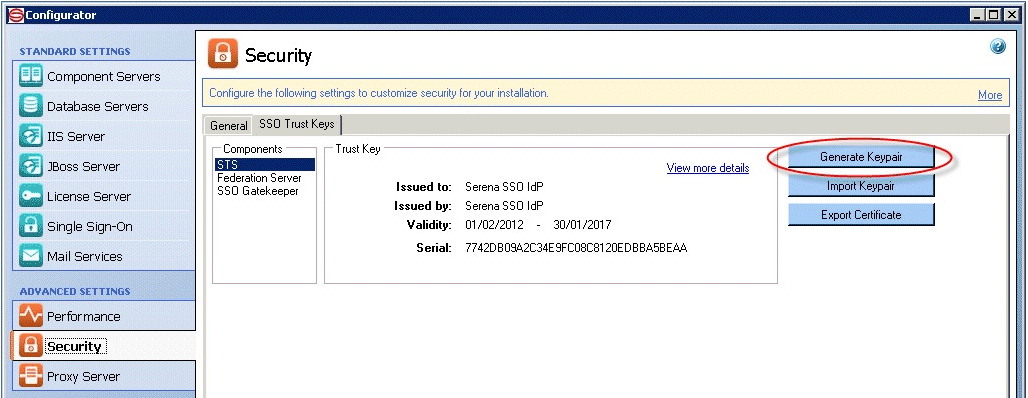
Start SBM Configurator and navigate to Security | SSO Trust Keys | STS.
-
Use the Generate Keypair button to regenerate the STS certificate.
-
Use the Export Certificate button to export the newly generated certificate to a .pem file (for example to C:\Temp\sts.pem).
-
Click Apply to apply the changes.
If you are using SBM 10.1.1.4:
-
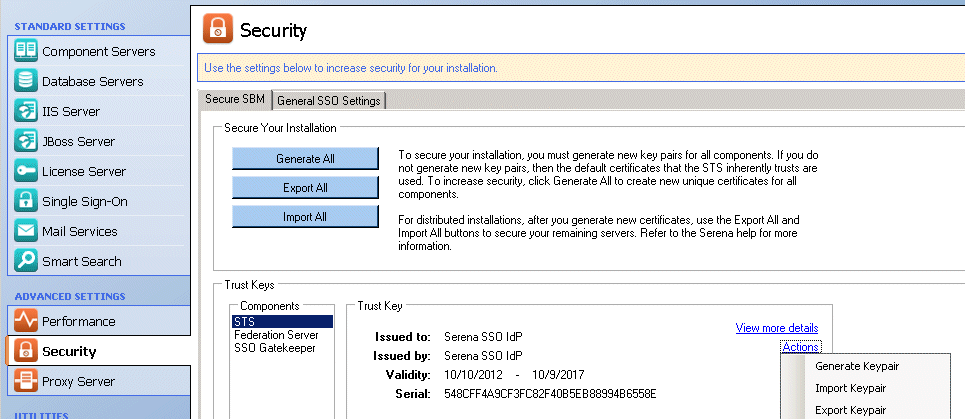
Start SBM Configurator and navigate to Security | Secure SBM | Trust Keys | STS.
-
Under Actions, select Generate Keypair to regenerate the STS certificate.
-
Under Actions, select Export Certificate to export the newly generated certificate. Save this as a .pem file (for example to C:\Temp\sts.pem).
-
Click Apply to apply the changes.
On each machine where the Serena Common Tomcat is installed:
-
Stop Tomcat.
-
Copy the sts.pem file to that machine (for example to C:\Temp\sts.pem).
-
Under the folder where the common Tomcat is installed, for example:
C:\Program Files\Serena\Common Tools\tomcat\6.0\...
C:\Program Files\Common\tomcat\6.0\...
C:\Program Files\Serena\Dimensions 12.2\Common Tools\tomcat\6.0
-
Navigate to
\alfssogatekeeper\conf
and make a backup of the truststore.jks file.
-
Under the Common Tools or Common folder, Navigate to
\jre\6.0\bin.
-
Delete the existing STS certificate, for example using the following command:
keytool -delete -keystore "C:\Program Files\Serena\Common Tools\tomcat\6.0\alfssogatekeeper\conf\truststore.jks

-alias sts
Enter the default password changeit when prompted.
-
Import the certificate from the C:\Temp\sts.pem file into truststore.jks, for example by using the following command:
keytool -import -keystore "C:\Program Files\Serena\Common Tools\tomcat\6.0\alfssogatekeeper\conf\truststore.jks

-file "C:\temp\sts.pem" -alias sts
After entering the password, when prompted with Trust this certificate? [no]:, reply Y.
-
Restart Tomcat.
If this is the Dimensions CM Server:
Also do the following:
-
Stop the Dimensions Listener service.
-
Create a backup of
C:\Program Files\Serena\Dimensions 12.2\CM\dfs\sts.pem
-
Copy the file C:\Temp\sts.pem to
C:\Program Files\Serena\Dimensions 12.2\CM\dfs\sts.pem
-
Restart the Dimensions Listener service.