In SBM Composer, open the Dev Tasks process app.
Under Rules, select Parent Dev CR not Complete.
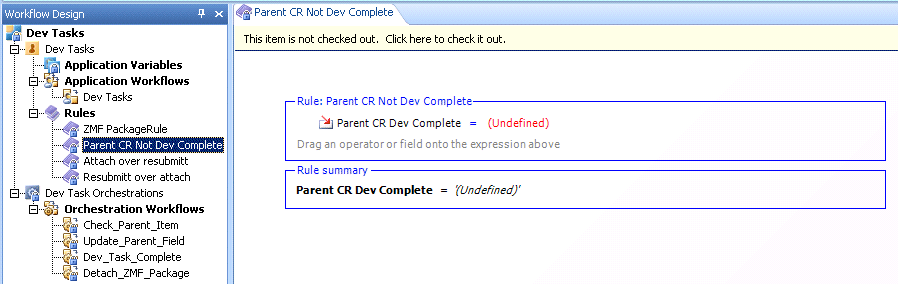
If the rule is undefined, change it to Parent CR Dev Complete = No.
Repeat this for the three rules in the Dev Packages process app as specified below.
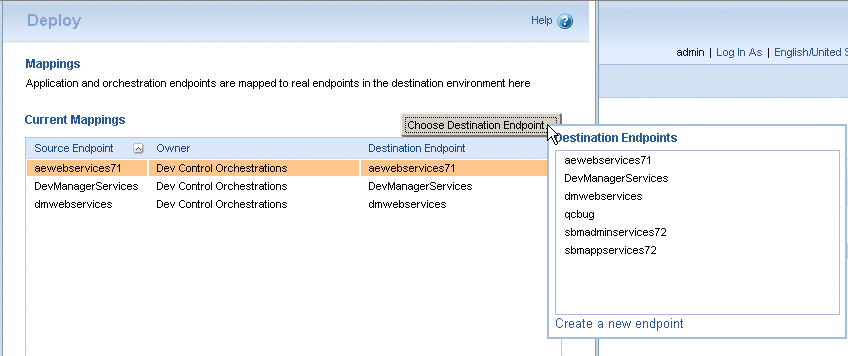
During the promotion of the Dev Change Requests snapshot, the destination endpoint for DVMUtilServices is set to DevManagerServices instead of DVMUtilServices. This appears on the Mapping page during promotion. To remedy this, select the endpoint, click Choose Destination Endpoint, and select the endpoint DVMUtilServices.
If you receive an error in SBM Composer when deploying a process app:
Unexpected exception during DefinitionUtilities.ExportDefinition
It is likely that the process app contains references to another process app that needs to be deployed before it. The process apps need to be deployed in the order specified below:
Global Process App (eval)
Requirements Approval Management (if you are using Requirements Manager)
ALM Projects
Dev Change Requests
Dev Tasks
Dev Package
Dev Control Orchestrations
Products and Components
Quality Center Connector (if you are using HP Quality Center)
RM to RQM Connector (if you are using Requirements Manager)
Release Train (if you are using Release Manager)
Application Release (if you are using Release Manager)
Release Package (if you are using Release Manager)
Deployment (if you are using Release Manager)
Environment (if you are using Release Manager)
ReleaseTemplate (if you are using Release Manager)
RLM_AUX
Vault_Request (if you are using Release Manager)
There is a problem whereby when you are promoting the Serena ALM snapshots, some of the endpoints are not set up correctly. This means that the default endpoint is not automatically selected when you promote the process apps, and the server name is not set correctly. These endpoints are:
DVMUtilService,
RLMUtilService,
ReleaseRequestService
To remedy this:
When promoting each process app:
On the Current Mappings page, if the field under the Destination column is not set to an endpoint:
Select any Source that does not have a Destination Endpoint and click the Choose Destination Endpoint button.
Select the endpoint from the list.
If the Destination Endpoint has not yet been defined for the selected Source, click Create a new endpoint. You will need to do this for RLMUtilService and ReleaseRequestService.
To create and select an endpoint:
Name the endpoint.
TIP Name the new endpoint the same as the Source Endpoint for which it is being created for ease of identification when selecting it as the Destination Endpoint later.
In the URL field, enter the following:
http://localhost:<tomcat port>/alm/services/<service name>
where <tomcat port> is the port under which you are running the Serena Common Tomcat Web server.
This specifies the path to the Web services, which are deployed under the alm/services directory of the common Tomcat Web server.
Example endpoints with the default port number are shown in the following table.
| Source | Destination Endpoint |
|---|---|
|
RLMUtilService |
http://almhost:8080/alm/services/RLMUtilService |
|
ReleaseRequestService |
http://almhost:8080/alm/services/ReleaseRequestService |
In the Authentication field, select Security Token.
Click Test Connection to test the connection.
Click OK.
Select the Source Endpoint again and click Choose Destination Endpoint. Select the endpoint you just created.
When updating the endpoints:
(For details, see Updating the Endpoints in the Development Manager Installation and Configuration Guide)
From SBM Application Administrator:
Click Environments.
Select the environment you used for the promotions.
Select the Endpoints tab.
Check that the server name portion of the URL for each endpoint is set to localhost or the name of the SBM server. If it is not:
Select the endpoint.
Click the Edit button
Change the server name to localhost,
for example, DVMUtilService should be:
http://localhost:8080/alm/services/DVMUtilService
Click OK.
Deploy the relevant process apps after updating the endpoints.
When Deploying the process apps you may receive an error because some rules with sub-relational field dependencies are not set. There are four rules for which this may occur.
To remedy the problem, you will need to set the undefined rules to the correct value.
In SBM Composer, open the Dev Tasks process app.
Under Rules, select Parent Dev CR not Complete.
If the rule is undefined, change it to Parent CR Dev Complete = No.
Repeat this for the three rules in the Dev Packages process app as specified below.
The rules that may need to be set are:
Dev Tasks:
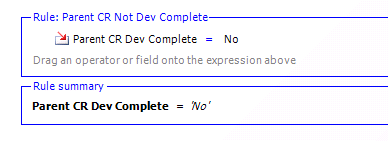
Parent Dev CR not Complete:
Parent CR Dev Complete = No
Dev Packages:
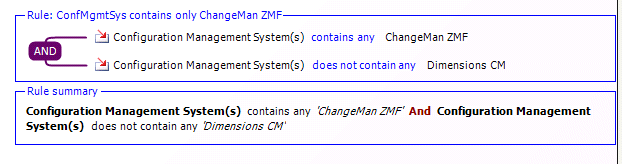
ConfMgmtSys Contains only ChangeMan ZMF:
Configuration Management System(s) contains any ChangeMan ZMF
AND
Configuration Management System(s) does not contain any Dimensions CM
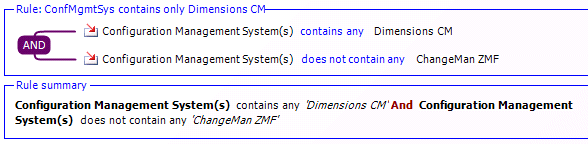
ConfMgmtSys Contains only Dimensions CM
Configuration Management System(s) contains any Dimensions CM
AND
Configuration Management System(s) does not contain any ChangeMan ZMF
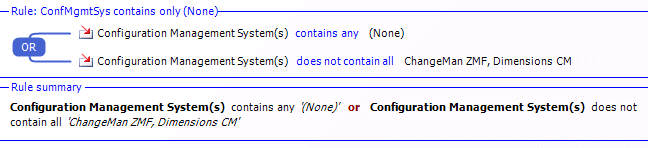
ConfMgmtSys Contains only (None)
Configuration Management System(s) contains any (none)
OR
Configuration Management System(s) does not contain all
ChangeMan ZMF, Dimensions CM
Continue deploying the process apps after making these changes.
When promoting the process apps, you may see "Unable to create field" warning messages in the promote log. For example:
WARN -- Unable to create field 'alm_Originating Baseline' in table 'Dev Packages' because relational table 'Related Vault Baselines' is not defined.
WARN -- Unable to create field 'Vault Template' in table 'Dev Packages' because relational table 'Vault_Request' is not defined.
Such messages will not affect the success of the promotions or the functioning of Development Manager, and can be ignored.
If you are upgrading a previous installation of Development Manager, you may receive an error in SBM Application Administrator when promoting the Global Process App (eval) process app.
This problem can be overcome by setting the following values on the Global Entities page of the Promote Wizard.
Groups: None
Users: None
When upgrading an existing installation of Development Manager, you may find that some groups and users are unassigned from projects after promoting snapshots.
This problem can be overcome by setting the following values on the Global Entities page of the Promote Wizard.
Groups: None
Users: None
If you are using MSSQL, the user groups are not present for the sample data. In this case you will need to assign the necessary roles for the users to enable them to use the applications using SBM Administrator. For details, see Creating and Assigning the Users.
When you have redeployed the process apps, for example after updating the application links in the Event Mappings as described in the post-installation steps, you may find that duplicate endpoints have been created, such as
dmwebservices_2
DevManagerServices_2
This results in an error in SBM Composer such as:
The Orchestration Engine cannot send the Web service request at service step CM_Create_Standard_Baseline to the endpoint ...
The solution is to use SBM Application Administrator to perform the deployments.
Open each process app in SBM Composer
Click the Publish button in the toolbar
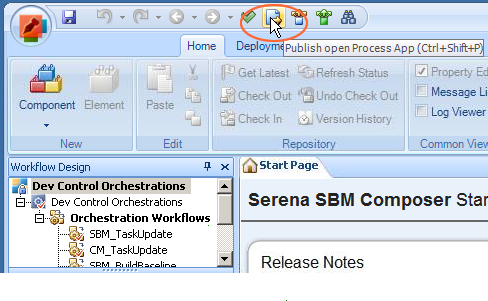
In the Publish Process App dialog box, select Allow others to deploy this version of the process app and click Publish.
Open SBM Application Administrator by entering http://localhost:8085/mashupmgr/ in a browser.
Select Process Apps on the left.
Click in the Destination field.
Select the environment and click Next.
Check that the list of endpoints is correct.
The User Interface for Development Manager should have a blue and grey color scheme when you log in using the URL:
http://<hostname>/tmtrack/tmtrack.dll?shell=alm
If the correct User Interface is not being displayed you will need to perform the following steps:
Open the zip file \Solutions\Development Control\com.serena.dvm.shell.zip, in the Serena installation folder, for example:
C:\Program Files\Serena\Solutions\Development Control

\com.serena.dvm.sbm.shell.zip
Extract the bin and template folders to the Application Engine folder, for example:
C:\Program Files\Serena\SBM\Application Engine
Click Yes to all to overwrite the files
Perform the steps described in Installing the UI Files
Open the Development Manager application by entering:
http://<hostname>/tmtrack/tmtrack.dll?shell=alm
In a Web browser
If the stylesheet is not refreshing you may need to refresh them manually:
Right click on the browser window, and select View Page Source
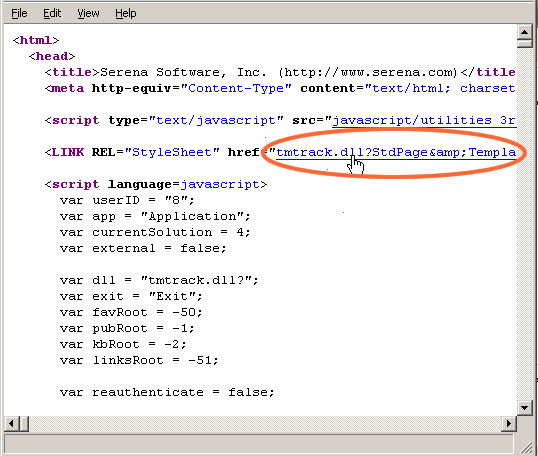
Click on the link for the stylesheet.
This will open the .css file from the cache.
In the stylesheet window, select View | Reload or press F5.
Close and reopen Development Manager.
You may experience a problem whereby having installed the ALM Suites and performed the action File | Put Files into Database using SBM System Administrator, and then made changes to the shell files and performed Put Files into Database again, that old versions of the files are still present in SBM. This means that you will need to replace the files again and repeat the Put Files into Database action.
This problem can be avoided by performing File | Get Files From Database in SBM System Administrator before running the ALM Suite installer.
If a process is attempting to create an item, and there is an error, for example "[ERROR] Access Denied," in the log, and the item is not created, then it is likely that you do not have access privileges for the connector user. Carry out the following steps:
Open the SBM System Administrator.
Select users.
Select the connector user (for example DMSYS) and click Edit.
Select the Administration tab.
Select Global Administration and click OK.
Check whether:
The Development Manager web services is running.
You have configured the Development Manager web services correctly.
If SSO is enabled, ensure that the user you are using in SBM also exists in Dimensions CM.
Make sure the SBM services JBOSS and IIS have been restarted, using SBM configurator for example.
Deploy the Dev Control Orchestrations process app.
Restart the server.
If this does not work, check whether you are using the connector account (for example dmsys). You should not be using the connector account to create items in SBM, it is reserved for connecting only.
If when trying to create a baseline from a dev package, no baseline gets created in Dimensions CM, and the following appears in the Windows Event Viewer:
Error occurred in file:
'.\WSInvoker.cpp', line 1287.
Error mapping data with field 'Baseline Build Configuration'
you can resolve the event viewer error by unlocking the event definition.
Do the following:
In SBM Composer open the Dev Packages application.
Show Extensions.
Expand Orchestration Links.
Click on Event without Reply.
Check the item out.
Ensure that Lock definition (on the right-hand side) is not checked.
Check in the item and re-deploy.
You need to recreate ChangeTaskworkflowEventDefinition:
In SBM Composer, Open the Dev Tasks process application.
Under Orchestration Links, select Event without Reply.
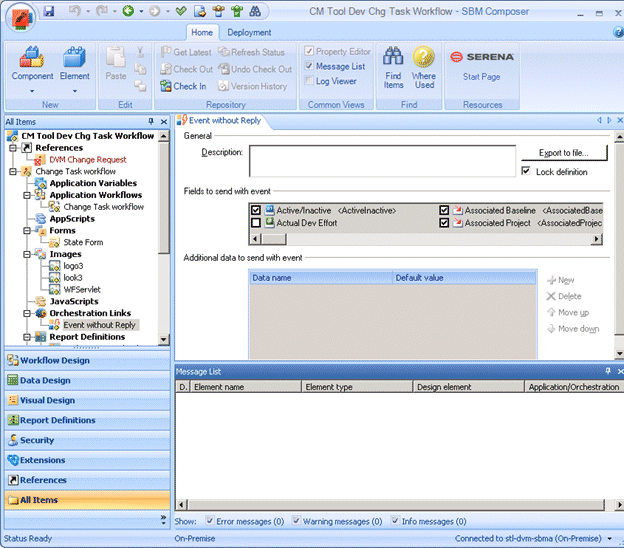
Uncheck Lock definition.
Click Export to file… , type the file name and export the Orchestration link to a file.
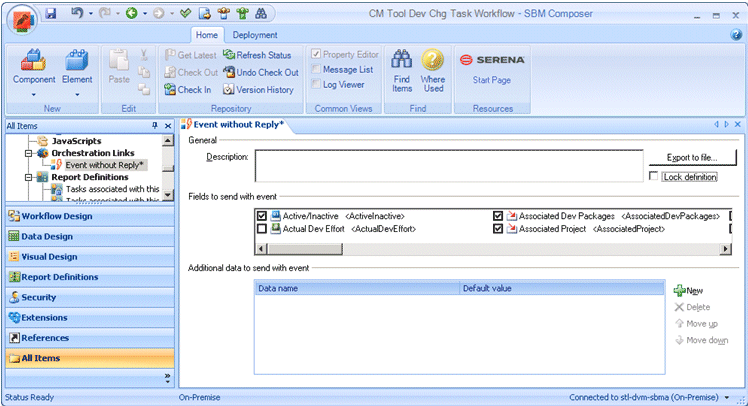
Click Yes to automatically lock the definition
Check in the item and re-deploy.
In this case, you need to recreate
DevelopmentControlChangeRequestWorkflowEventDefinition.
In SBM Composer, open the ALM Projects process application.
Select Orchestration Links. Links can be exported from here.
Select the Event without Reply orchestration link.
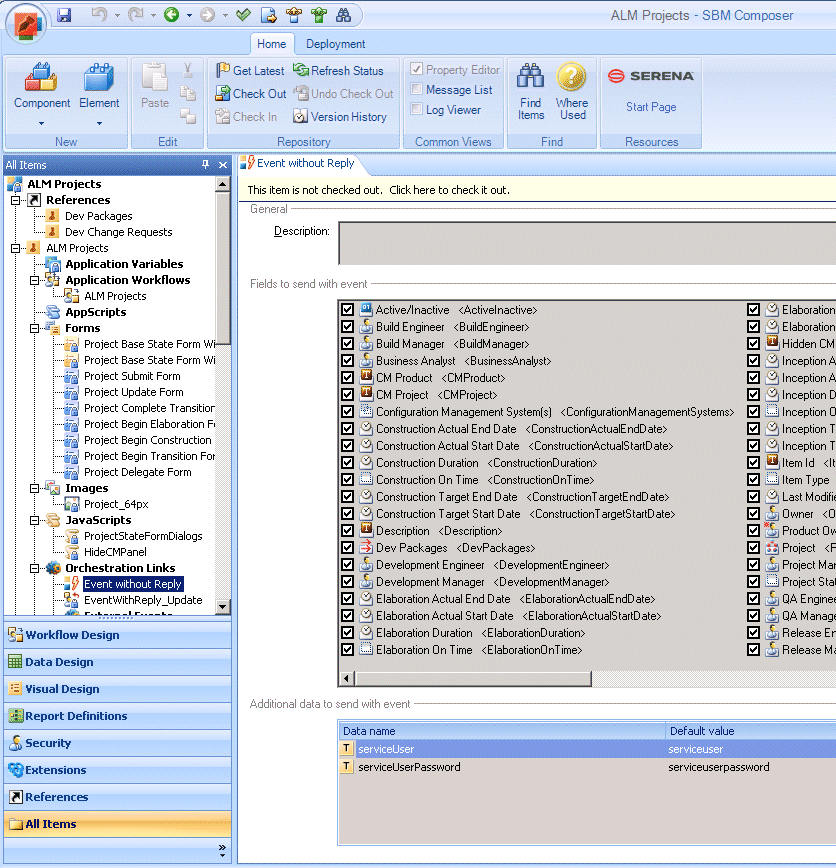
Uncheck Lock definition.
Click Export to file… , type the file name and export the Orchestration link to a file.
Check in the item and re-deploy.
You need to recreate DVMBaselineEventDefinition.
In SBM Composer, open the ALM Projects process application.
Select Orchestration Links. Links can be exported from here.
Select the Event without reply orchestration link.
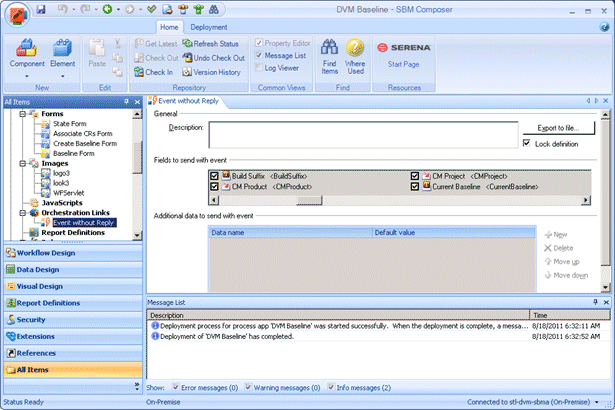
Uncheck Lock definition.
Click Export to file… , type the file name and export the Orchestration link to a file.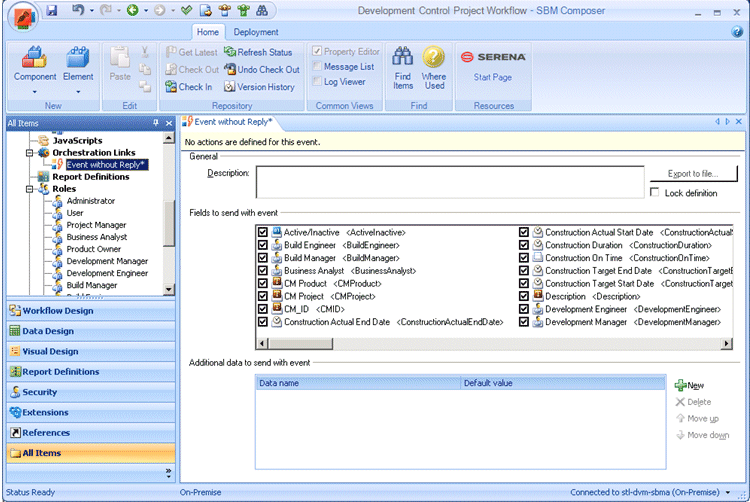
Check in the item and re-deploy.