To add a step:
-
In the
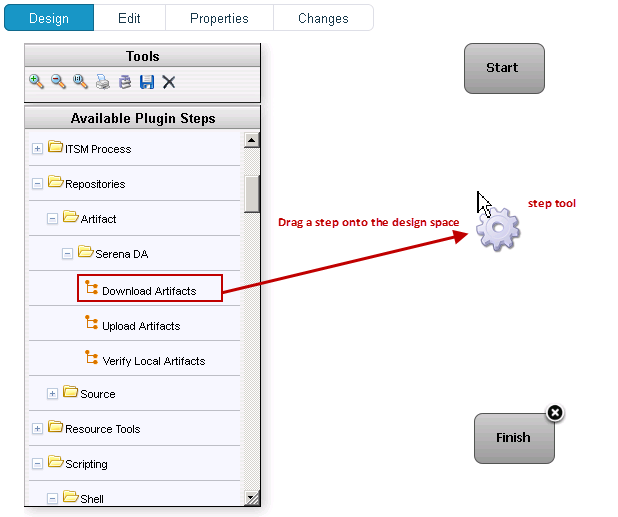
Available Plugin Steps list, using your mouse drag the step
you want to use onto the design space.
The cursor changes to the step tool.
-
Release the step tool over the design space.
Figure 1. Adding a Step
The Edit Properties pop-up displays.
Because connections are created after configuring the step's properties, you can place the step anywhere on the design space. Steps can be dragged and positioned at any time.
Figure 2. Typical Edit Properties Pop-up
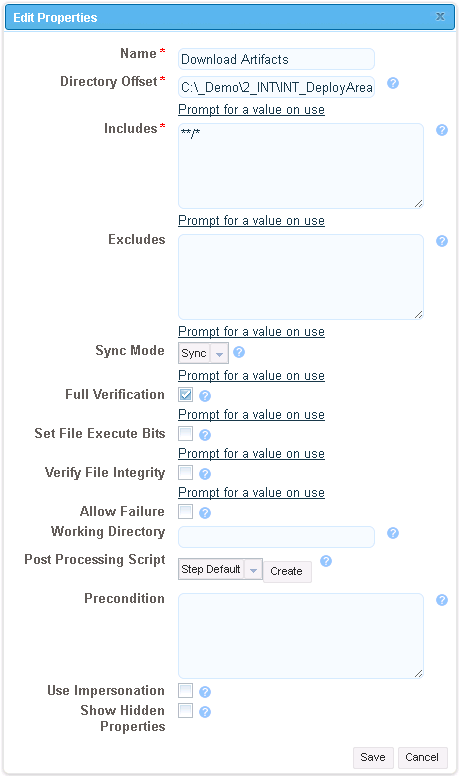
Configuration dialogs are tailored to the selected step; only parameters associated with the step type are displayed.
-
After configuring the step's properties, to save the step click
Save.
The step is on the design space and ready to be connected to other steps.
-
If you want to remove the step from the design space, click
Cancel.
You can add connections immediately after placing a step, or place multiple steps before defining connections.